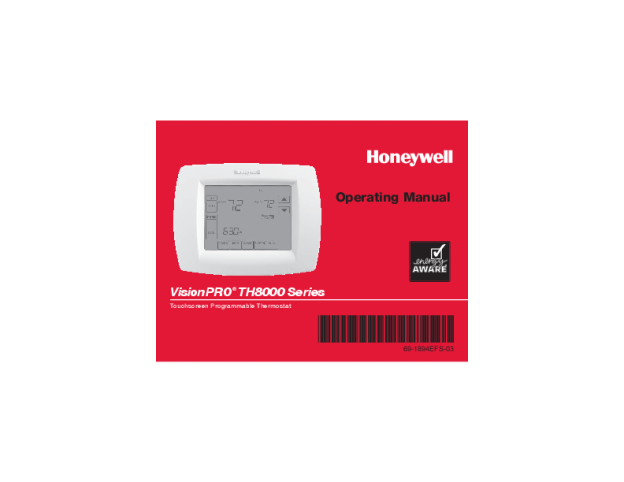
This Honeywell TH8321WF1001 Wi-Fi VisionPRO Thermostat User Guide is for the owner with the touchscreen already on the wall and a router it has never met. Every step, screen message and menu list below is quoted from the guide itself, with its page number attached.
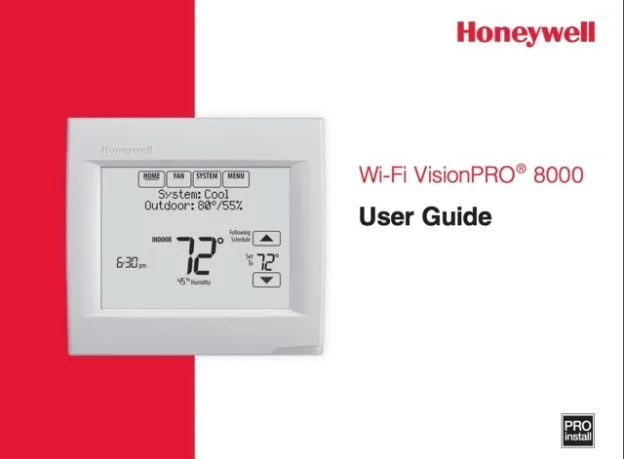
The cover calls it the “Wi-Fi VisionPRO” 8000 User Guide, footer id 33-00066EFS—01. The file runs 156 pages because it is trilingual; the English section is pages 1 to 52. If you came looking for how to connect Honeywell VisionPro thermostat to Wi-Fi, that procedure starts on guide page 5.
Download Honeywell TH8321WF1001 Wi-Fi VisionPRO Thermostat User Guide (PDF)
Table of Contents
What the Thermostat Is For
Page 1 opens with six capabilities. You can “Connect to the Internet to monitor and control your heating/cooling system”, “View and change your heating/cooling system settings”, “View and set temperature and schedules”, “Receive alerts via email and get automatic upgrades”, “View outdoor temperature and humidity”, and “Download the free Total Connect Comfort app”.
Remote control is the payoff: “Once connected to Wi-Fi and registered to Total Connect Comfort, you can control your thermostat from anywhere through your laptop, tablet, or smartphone with the Total Connect Comfort app.” Help is listed twice in the guide — “For assistance please visit http://yourhome.honeywell.com , or call toll-free: 1-855-733-5465”.
The Four Buttons
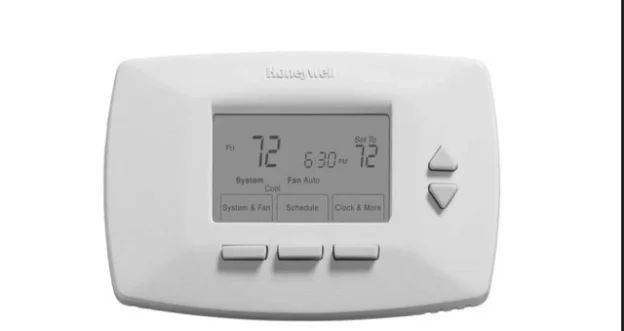
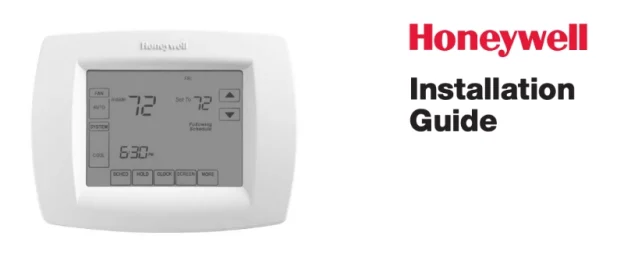
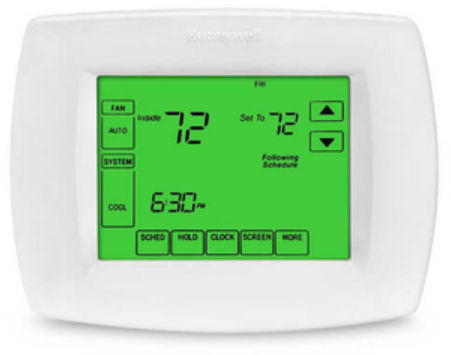
Pages 3 and 4 are quick-reference panels, one for residential and one for commercial use. The four keys are defined identically on both: “HOME. Touch to display Home screen.”, “FAN. Select fan mode.”, “SYSTEM. Select system mode (Heat/Cool).” and “MENU. Touch to display options.”
The rest of the panel labels the touchscreen: “Start here to set a program schedule”, and “Touch an arrow to change temperature setting and select a Temporary or Permanent Hold”.
The Alert Light is “On when alert message is active or system is set to EmHeat.”, and it “Flashes for battery-only power; on continuous if system powered.” Backlighting varies: “It stays lit for 7 seconds after you complete changes.”, yet “Depending on how your thermostat was installed, the screen light may always be on.”
TH8321WF1001 Wi-Fi Setup
Pages 5 to 7 walk through steps 1.1 to 1.8. Touch MENU, then “Select Wi-Fi Setup”, and “The thermostat will scan for available Wi-Fi networks.” The screen shows “Finding Networks Please Wait” “after which it displays a list of all Wi-Fi networks it can find.”
Pick your network: “Find the name of the network you want to use by pressing the arrow buttons to scroll up/down or left/right. Press the Wi-Fi network name, then press Select.” Then “When prompted, press the screen to edit the password (if necessary).” The arrow keys change characters and letter case; “Press Done when complete.”
“The screen will let you know when the connection is successful.” If it fails, “the screen will explain why not”, and the guide adds: “Press the” up arrow “for other tips about this failed connection.”
Two extras sit nearby. Hidden networks: “If the Wi-Fi network name is hidden, see “Connecting to a hidden Wi-Fi network” on page 44.” Signal strength: “You can check signal strength at any time after the thermostat is connected to the Wi-Fi network by pressing MENU then Wi-Fi Setup.”
Later changes are covered too. To move to a new router, MENU then Wi-Fi Setup leads to “Disconnect Wi-Fi Network”; the screen “will show “Wi-Fi Disconnected Successfully.” Touch Done.” Reconnecting repeats the network list, then “The thermostat displays “Connecting Please Wait” then a “Connection Successful” screen.”
Registering With Total Connect Comfort
Wi-Fi alone is not remote access: “If you want remote access to the thermostat, you must set up an account at mytotalconnectcomfort.com and add the thermostat to the account.”
The identifiers are the fiddly part. “You will need the thermostat MAC and CRC IDs to add the thermostat. They are on the screen under Menu, Wi-Fi Setup and on the Thermostat ID Card packed with the thermostat.”
On the site, “After adding your thermostat location, you must enter the thermostat’s unique identifiers”, listed as “MAC ID” and “MAC CRC”. The TH8321WF1001 MAC and CRC IDs “are not case sensitive”, and appear on the Register Online screen or the printed card.
New accounts must be activated: “Check your email for an activation message from My Total Connect Comfort.” If nothing arrives, “check your junk mailbox or use an alternate e-mail address.” Then “the Total Connect Comfort registration screen will display a SUCCESS message.”
One caution about the printed card. The sample card reproduced on page 10 reads “HONEYWELL MODEL: RTH8580WF”, so the artwork in this VisionPRO 8000 user guide PDF shows a sibling model, not the TH8321WF1001. The registration steps are the same; use the card and screen from your own unit.
Clock, Fan and System Mode
Setting the clock is four touches, and registration changes it: “When registered to Total Connect Comfort, the thermostat automatically sets the time and adjusts for Daylight Saving Time.”
Fan modes, from page 13, are defined as: “On: Fan is always on.”, “Auto: Fan runs only when the heating or cooling system is on.”, “Circ: Fan runs randomly about 35% of the time (residential use only).” and “Follow Schedule: Fan controlled by program”.
System modes, from page 14: “Heat: Controls only the heating system.”, “Cool: Controls only the cooling system.”, “Off: Heating/cooling systems are off.”, “Auto: Selects heating or cooling depending on the indoor temperature.” and “Em Heat (heat pumps with aux. heat): Controls auxiliary/emergency heat. Compressor is locked out.” Not everyone sees all five: “The Auto and Em Heat system settings may not appear, depending on how your thermostat was installed.”
Schedules and Holds
Page 15 prints the defaults: “This thermostat uses default Energy Saver settings that can reduce your heating/cooling expenses.” The residential rows are the ones most owners touch.
| Period | Start time | Heat | Cool |
|---|---|---|---|
| Wake | 6:00 am | 70° | 78° |
| Leave | 8:00 am | 62° | 85° |
| Return | 6:00 pm | 70° | 78° |
| Sleep | 10:00 pm | 62° | 82° |
The commercial table below carries a fan column, and about its starred rows the guide states: “Period 2 is cancelled by default. If you activate it, the values shown above are default settings.”
| Period | Start time | Heat | Cool | Fan |
|---|---|---|---|---|
| Occupied 1 | 8:00 am | 70° | 75° | On |
| Unoccupied 1 | 10:00 pm | 55° | 85° | Auto |
| Occupied 2* | 12:00 am | 70° | 75° | On |
| Unoccupied 2* | 12:00 am | 55° | 85° | Auto |
To change any of it, “Select Edit Schedule to display Use Scheduling Assistant?” — “Touch Yes to create a schedule by answering simple questions.” or “Touch No to manually create a program schedule.”
Manual editing runs “Select the days to schedule”, then sets the Wake time and its Heat and Cool temperatures, then “Touch other time periods (Leave, Return, Sleep) to set time and temperatures for each.” “Touch Cancel Period to eliminate any unwanted time period.”, and “Touch Fan Setting to customize fan settings for any time period.”
Holds differ by use. Residential: “The schedule will resume when the Hold Until time expires.”, or “Select Permanent Hold to keep the same temperature until you change it or resume the program schedule.” Commercial: the adjusted temperature “will be maintained for 1 hour and can be adjusted up to the maximum time set by the installer.” Both share “Touch Cancel Hold at any time to resume the program schedule.”
Vacation hold, residential, “helps you save energy while you are away, and restores comfortable settings just before you return home.” Commercial sites get holiday scheduling instead: “Custom Events lets you set up other days for special schedules.”, and “US and Canadian Holiday options let you select from a list of holidays commonly observed in each country.”
Humidity, Ventilation and Preferences
Humidity lives under MENU. Dehumidification “can control a dehumidifier or use your air conditioner to reduce humidity”, with a trade-off the guide states plainly: “the temperature may drop up to 3° F below your temperature setting until humidity reaches the desired level.”
For winter, “If frost or condensation appears on the windows, touch MENU, then select Window Protection.”, where you “Use a lower number to prevent frost or condensation.” Two limits apply: “Window Protection is available only if an outdoor air sensor is installed.” and “the thermostat may maintain a 15% separation between humidification and dehumidification settings.”
Ventilation has three modes: “Auto: Ventilation runs as programmed by the installer.”, “Off: Ventilation remains off unless turned on using the timer.” and “On: Ventilation is always on.”, plus Temporary Boost and a Lockout that “prevent ventilation from running during the Sleep or Unoccupied (commercial) program periods or when outdoor conditions exceed values set by the installer.”
Preferences “let you select how the thermostat displays information or responds to certain situations”: filter reminders, Fahrenheit/Celsius, clock format, backlighting, alert light, scheduling, adaptive recovery, default schedule and daylight saving time.
Two housekeeping menus. “When you select the Clean Screen option, the screen is locked so you don’t accidentally change settings while you clean.” — and “Do NOT spray any liquid directly on the thermostat.” Security “can adjust security options to prevent unauthorized changes”: “Unlocked: Full access allowed.”, “Partially locked: Only temperature can be changed.”, “Fully locked: No access allowed.”
Advanced features, page 37, explain the odd behaviour owners report. Recovery: “The thermostat displays “In Recovery” when it turns the system on early.” Installer options “require a password and should only be changed by a qualified technician.”
TH8321WF1001 Troubleshooting
Wi-Fi failures get three named causes on pages 42 and 43, and the guide prints one screen each.
| Screen | What the guide says |
|---|---|
| Invalid Password | “The password you entered is invalid. Check that you have the right password and try again.” |
| No IP Address | “The thermostat was unable to obtain an IP address from the router. Verify the router is correctly set up to automatically assign IP addresses.” If it still fails, “remove the thermostat from the wallplate for 10 seconds, then snap it back into place.” |
| No Internet Link | “The thermostat connected to the Wi-Fi network but was unable to establish a connection to the internet. Check the router settings and try again.” |
Page 47 covers the rest under four headings. “Screen is blank”: “Check circuit breaker and reset if necessary.”, “Make sure power switch at heating and cooling system is on.”, “Make sure furnace door is closed securely.”
If the unit runs on cells, “make sure fresh AA alkaline batteries are installed correctly.”
“Screen is difficult to read”: “Change screen brightness using Preferences menu (see page 33).” “Red light is on”: “If thermostat is in Emergency Heat mode, the red light is normal.”, otherwise “an alert is active. Check message on the thermostat screen.”
“Heating or cooling system does not respond”: set SYSTEM to Heat and “Make sure the temperature is set higher than the Inside temperature”, or to Cool and “Make sure the temperature is set lower than the Inside temperature”. Then check breaker, power switch and furnace door.
If the screen says Wait: “If “Wait” is displayed, the compressor protection timer is on. Wait 5 minutes for the system to restart safely, without damaging the compressor.”
Warranty and Fine Print
Page 48 is headed “Up to 5-year limited warranty”, but its own sentence is narrower: “Honeywell warrants this product, excluding battery, to be free from defects in the workmanship or materials, under normal use and service, for a period of three (3) years from the date of purchase by the consumer.”
It also warns that “This warranty does not cover removal or reinstallation costs.” Customer Care is the same 1-855-733-5465 number, and the last English page adds “This thermostat contains a Lithium battery which may contain Perchlorate material.”
FAQ
Do I need Total Connect Comfort to use the thermostat?
No. Wi-Fi setup is local. The account is only for remote access, since you “must set up an account at mytotalconnectcomfort.com and add the thermostat to the account.”
Where do I find the MAC and CRC numbers?
Two places, per the guide: “They are on the screen under Menu, Wi-Fi Setup and on the Thermostat ID Card packed with the thermostat.” They are not case sensitive.
Why does my screen say Wait and nothing happens?
Compressor protection. “If “Wait” is displayed, the compressor protection timer is on. Wait 5 minutes for the system to restart safely, without damaging the compressor.”
Why is Circ missing from my fan menu?
The guide defines it as residential-only — “Circ: Fan runs randomly about 35% of the time (residential use only).” In commercial use, “touch Auto or On to temporarily override the programmed fan schedule.”
How long does a commercial hold last?
“The new temperature will be maintained for 1 hour and can be adjusted up to the maximum time set by the installer.”