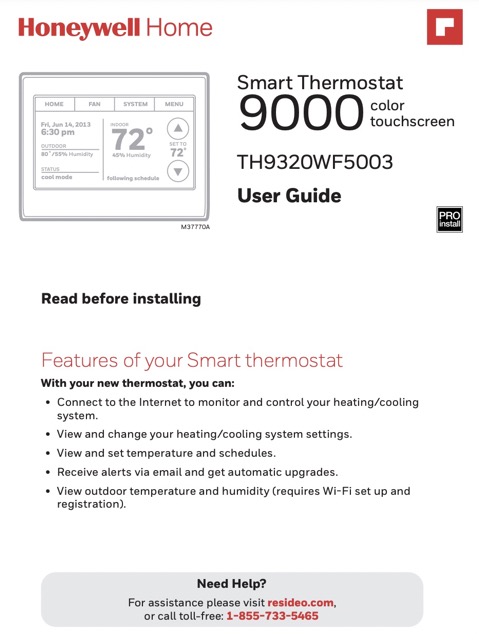
The Honeywell Home TH9320WF5003 User Manual is Resideo’s owner guide for the Wi-Fi 9000 Color Touchscreen Thermostat. The document number is 69-2814EFS; the current printing is revision -12 with the cover mark M.S. Rev. 04-22 and copyright 2022 Resideo Technologies, Inc. Earlier printings (-05 and -07) carry the same core content with a Honeywell International copyright line.
A naming note that trips people up: the TH9320WF5003 is the Wi-Fi 9000 model, not the T9 Smart. Honeywell reused the TH9320 prefix across both, but the two lines use different apps and different hardware. The 9000 works through the Total Connect Comfort service in a browser or its mobile app; the T9 (TH9320WF3004) uses the Resideo app and pairs with the smart room sensors. If the box says “Wi-Fi 9000,” this manual is the one to use.
Scope of the guide: physical install is documented in a separate Installation Instructions booklet. The User Manual assumes the thermostat is already on the wall and covers Wi-Fi connection, registration with Total Connect Comfort, time and date, fan and system mode, the seven-day program schedules, temporary and permanent hold, vacation, business-mode holiday and occupancy features, screen color, preferences, and cleaning. Terminal assignments, wiring, and commissioning values belong to the install guide.
Key Features of the TH9320WF5003
The manual’s front matter (page 2) opens with what the thermostat can do once it is connected. Read it alongside Honeywell’s own product listing to confirm the underlying hardware:
- Wi-Fi 2.4 GHz (802.11b/g/n) with Total Connect Comfort. Register the unit at mytotalconnectcomfort.com using the MAC ID and CRC printed on the thermostat.
- Remote control and monitoring. View and set temperature and schedules from a browser or mobile app; automatic software updates over Wi-Fi.
- Email alerts and outdoor weather. The manual notes that email alerts and the outdoor temperature and humidity display require Wi-Fi setup and registration.
- 7-Day programmable. Selectable to 7-day programming or non-programmable. Four periods per day (Wake, Leave, Return, Sleep) with different weekday and weekend programs.
- Color touchscreen. A large backlit display with customizable color themes; the screen can be set to match décor.
- Multi-stage support. Rated for 24 V low-voltage HVAC systems, up to 3 heat / 2 cool on heat pump or 2 heat / 2 cool on conventional systems. The install guide covers terminals R, RC, C, W (or O/B), W2 (or AUX/E), Y, Y2, G, L, and K.
- Home and Business modes. The manual carries a Business-screen quick reference alongside the Home layout, and Business-mode features such as Holiday/Event Scheduler, Custom Events, and Occupancy Mode.
- Awareness features. Equipment status screen, filter and battery reminders, keypad lockout, and cleaning lock.
Document Structure
The 69-2814EFS User Guide is organized by task, and the printed page references below match the manual’s own table of contents. Knowing which page holds which feature makes it easy to answer questions on the phone or in a service ticket.
- About your new thermostat. What you can do through Total Connect Comfort, plus the Home-screen and Business-screen quick reference pages.
- Setting up your thermostat. Connecting to Wi-Fi (MENU, then Wi-Fi Setup), entering the network password, and confirming the “Connection Successful” screen.
- Registering your thermostat online. Creating or signing in to a My Total Connect Comfort account, then entering the MAC ID and CRC identifiers to bind the unit.
- Daily operation. Setting the time and date, setting the fan (On, Automatic, Circulate, or Follow Schedule), setting the system mode (Heat, Cool, Off, or Automatic), and reading the presets.
- Programming schedules. Preset energy-saving schedule, adjusting program schedules, and overriding schedules in Home or Business mode.
- Away and special situations. Vacation hold (home use), holiday and event scheduling, custom events, holiday override, and initiating occupancy mode (business use).
- Look and feel. Equipment status, customizing screen color, setting preferences, adjusting security (keypad lock), and cleaning the thermostat screen.
- Reference. Glossary, Regulatory Information (FCC Part 15.19, 15.21, 15.105(b) Class B; Industry Canada RSS-GEN 7.1.2 and 7.1.3), and the Resideo address block.
Wi-Fi Setup and Total Connect Comfort
The manual treats Wi-Fi and registration as two connected steps. Do them once, and every feature behind “remote access, alerts, and outdoor weather” unlocks.
- On the touchscreen, press MENU, then touch Wi-Fi Setup. The screen shows “Searching for wireless networks. Please wait…” then a list of available networks.
- Pick your network. Use the on-screen keyboard to type the Wi-Fi password, then touch Done. The unit replies “Connecting to your network. Please wait…” and then a “Connection Successful” screen.
- Press Next to reach the registration information screen. If you dismiss it before finishing, an orange alert appears on the home screen reminding you to register.
- In a browser, go to mytotalconnectcomfort.com, create or sign in to an account, and follow the Add Thermostat prompts. Enter the MAC ID and CRC that the thermostat displays; these are the unique identifiers that bind the unit to your account.
- After the site confirms the thermostat, the Total Connect Comfort screen displays SUCCESS and you can control the thermostat from the browser or the My Total Connect Comfort mobile app.
Programming and Daily Use
The Wi-Fi 9000 ships with a four-period preset schedule the manual prints on page 18. Weekday (Mon-Fri) values are Wake 6:00 a.m. at 70° heat / 78° cool, Leave 8:00 a.m. at 62° / 85°, Return 6:00 p.m. at 70° / 78°, and Sleep 10:00 p.m. at 62° / 82°. The Saturday-Sunday program uses the 6:00 a.m. and 10:00 p.m. periods at the same temperatures.
To change the schedule, follow the “Adjusting program schedules” steps in the manual:
- Touch MENU, then Create/Edit Schedule.
- Pick the mode: View/Edit for a quick change, Guide Me for the interview-style builder, or I’ll do it myself for full control.
- In “I’ll do it myself,” select the days you want to edit, then touch Next.
- Set the Wake time, then the heat and cool temperatures for that period. Touch Done to confirm.
- Repeat for LEAVE, RETURN, and SLEEP. Touch DELETE PERIOD to remove a period you do not want.
- Touch Done again to save and exit.
Everyday comfort tweaks use HOLD rather than editing the schedule. From the home screen, touch the temperature area to set a temporary hold with a “Hold Until” time; the schedule resumes when that time expires. Touch the option to switch to a permanent hold if you want the setting to stay until you resume the program schedule. In Business mode the hold duration is capped by the Override Duration value in Advanced Preferences.
Business installations get extra tools the manual walks through: a Holiday/Event Scheduler that can apply U.S. or Canadian holidays, custom one-off events scheduled by specific date or by month/weekday, a holiday override for an unplanned closure, and an Occupancy Mode that keeps the space at an energy-saving level until someone presses the button on arrival. The Home-use vacation-hold feature is simpler: MENU, then Vacation Mode, then the date you leave and the date you return.
Two maintenance touches round out daily use. Press MENU and select Equipment Status to see which heating, cooling, or fan outputs the thermostat is running right now. Press MENU and select Color Themes to change the screen to match the room, or to define a custom background and text color.
Important Safety Notices
The 69-2814EFS User Guide is not a wiring document. Wiring and commissioning safety belong to the Installation Instructions, and Honeywell Home’s thermostat support pages carry the standard warning verbatim:
Warning! Improper wiring or commissioning of your thermostat can cause unintended operation of your HVAC system which could lead to property damage, injury, including death. If you are unsure of what type of system you have, refer to your heating/cooling system equipment literature or call an HVAC professional.
- 24 V systems only. The TH9320WF5003 is a low-voltage thermostat. It is not built for a 120/240 V line-voltage circuit such as electric baseboard heat, and it is not rated for the same terminals as a line-voltage controller.
- Have wiring checked if you are unsure. The manual’s system-mode pages assume the install guide’s wiring was done correctly. If heat and cool behave as mirror images of each other, or if an unexpected output runs, stop and re-check terminal assignments against the install guide rather than adjusting settings at the touchscreen.
- Screen cleaning. The “Cleaning the thermostat screen” page in the guide walks through the clean-screen lock so the display does not accept touches while you wipe it.
Where the User Guide does not answer a question (wiring, terminal map, installer setup codes, or a specific error on screen), consult the Installation Instructions or Resideo Customer Care before opening the unit.
Getting Help
The user guide prints two contact points on different pages. Its Total Connect Comfort section directs users to http://yourhome.honeywell.com and to 1-855-733-5465 for help registering the thermostat and using remote features. The -12 revision footer adds the Resideo Customer Care number 1-800-468-1502 and the mailing address at 1985 Douglas Drive North, Golden Valley, MN 55422. Have the model number, the MAC ID and CRC, and a photo of your wiring (only for install questions) ready before you call.
Two things worth knowing if you are shopping or replacing. Honeywell Home lists a 5-year limited warranty on this model. SupplyHouse’s listing also shows the unit as discontinued as of August 25, 2026, with the RTH9585WF1004 and TH9320WFV6007 listed as replacements. If you are troubleshooting an existing install rather than buying new, the guide is still the reference for programming, Total Connect Comfort, and Business-mode features.
Skip to PDF content