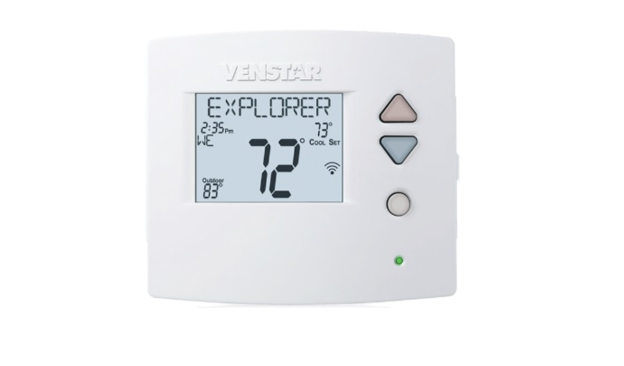
This guide covers the Venstar VOYAGER T4900 Owner’s Manual (P/N 88-1012, Rev. 5), the 60-page document for Venstar’s multi-stage Voyager thermostat. The T4900 is not a simple heat-and-cool dial: it stages heating and cooling, adds humidity control, and can take an optional wireless module. The steps below follow the manual and name its own controls and menus, and the PDF is linked here. Confirm anything that looks unfamiliar against the printed guide before you energize the system.
Skip to PDF contentTable of Contents
- What the T4900 Is
- Before You Start
- Buttons and Display
- Choosing a Mode
- Setting the Clock and Day
- Programming the Time Periods
- Fan, Override and Emergency Heat
- Wireless Modules and Holiday
- Installation and Wiring
- Installer Setup Highlights
- Troubleshooting (From the Manual)
- FAQ
What the T4900 Is
The Voyager T4900 is a 24 VAC digital thermostat built around four buttons plus a scrolling backlit LCD. What makes it the high-end model in the line:
- Multi-stage heating and cooling. The backplate carries staged terminals: W1/O/B, W2 and W3 for heating stages and Y1 and Y2 for cooling, so it can run a multi-stage system rather than a single on/off call.
- Humidity control. Dedicated HUM and DEHUM terminals drive a humidifier and a dehumidifier.
- Optional wireless module. The thermostat accepts a Wi-Fi, Z-Wave, ZigBee or Venstar RF module, and Venstar’s Wi-Fi path ties into a Skyport account.
- Fully time-based program. You choose a 7-day, 5-1-1-day, 1-day or non-program schedule, each day with up to four periods.
Before You Start
The manual’s cautions are straightforward. Turn off power to the heating and cooling system before removing any wires. The T4900 is a 24 VAC low-voltage thermostat; it is not for line-voltage or millivolt equipment. If the thermostat you are removing contains mercury, recycle it rather than bin it. The guide also notes the unit can receive firmware updates from the manufacturer over its wireless module, which is worth knowing before you assume a screen is “wrong.”
Buttons and Display
The front of the T4900 has backlit buttons; the scrolling display walks you through the setup screens. The controls the manual identifies:
- MODE moves between operating modes and advances through setup steps.
- WARMER and COOLER raise or lower the setpoint, and change values in setup.
- SETUP opens the user, installer and technician menus.
- PROGRAM enters the time-period schedule.
- FAN toggles constant fan; OVERRIDE forces occupancy; EMERGENCY runs emergency heat; SET CLOCK sets time and day.
The display shows icons for the current stage, the program period (Occupied 1, 2, 3 or Unoccupied), a heat or cool demand indicator (red for heat, green for cool), and, with a module installed, a wireless-connection icon.
Choosing a Mode
Press MODE to cycle the operating mode. The manual’s modes are Heat Only, Cool Only, Auto (Auto-Changeover) and Off. In Auto, the thermostat decides whether to heat or cool based on room demand, and pressing WARMER or COOLER shifts both the heat and cool setpoints together. To set them separately, switch to Heat or Cool, adjust, then return to Auto.
Setting the Clock and Day
Press SET CLOCK, then use WARMER or COOLER to set the time; press MODE to jump to the day, adjust, and press SET CLOCK again to confirm. A tip in the guide: hold the FAN button while pressing WARMER or COOLER to change the time in hours. If a Wi-Fi module is fitted, the clock is managed through the account and the local SET CLOCK step is not used.
Programming the Time Periods
Press PROGRAM to enter scheduling. First pick the program type: 7 Day lets every day differ, 5-1-1 groups weekdays and gives Saturday and Sunday their own schedule, 1 Day applies one pattern to all days, and Non-program runs a single fixed setpoint. Each programmed day uses up to four periods, named Occupied 1, Occupied 2, Unoccupied and Sleep in the display. Set a period’s start time with WARMER or COOLER and its heat and cool setpoints the same way, pressing MODE to advance. To save and exit, press PROGRAM; to copy one day to the next, press the up arrow then MODE, and press MODE again to push that day’s schedule to the following days.
Fan, Override and Emergency Heat
- Fan. Press FAN for “Fan On,” which runs the blower continuously; press again to return to auto, where the fan runs only during a heating or cooling call. Fan On is not offered in the Off mode.
- Override. During an unoccupied period, pressing OVERRIDE forces the thermostat into the Occupied 1 settings for 30 minutes; each extra press extends it.
- Emergency heat. Only when the unit is set up for a heat pump, pressing EMERGENCY bypasses the compressor and runs the backup heat.
Wireless Modules and Holiday
The T4900 can carry one of four modules: Wi-Fi, Z-Wave, ZigBee or Venstar RF. Wi-Fi setup and status live under the Accessory menu, and Venstar’s Wi-Fi service uses a Skyport account; when a Wi-Fi module is present, some local functions such as setting the clock or the Holiday program move to the account. The Holiday feature runs temporary energy-saving settings for a set number of days without changing your normal schedule.
Installation and Wiring
The guide matches each labeled wire from the old thermostat to the same-letter terminal on the new one. The T4900 backplate terminals, from the manual:
| Terminal | Function (from the manual) |
|---|---|
| R | 24 VAC power |
| C | 24 VAC common |
| W1 / O / B | First-stage heat; on a heat pump, the reversing-valve (O or B) terminal |
| W2 | Second-stage heat |
| W3 | Third-stage heat |
| Y1 | First-stage cooling (compressor) |
| Y2 | Second-stage cooling |
| G | Fan relay |
| HUM / DEHUM | Humidifier and dehumidifier control |
| AUX | Programmable auxiliary output |
| DRY CONTACT | Dry-contact switch input |
| OUTDOOR / REMOTE SENSOR | Outdoor and remote temperature sensors |
Behind the board are dip switches that tell the thermostat what it is driving: an equipment switch (Gas/Electric or Heat Pump), a fan/aux switch, and, for heat pumps, an O or B switch for the reversing valve. The manual’s sample wiring covers conventional systems (3- and 4-wire) and heat pumps (5- and 6-wire with the O/B valve). To test the install, the guide sends you into Technician Setup, where each output can be exercised.
Installer Setup Highlights
Most of the T4900’s depth lives in Installer Setup, reached from the SETUP menu. The manual’s installer section covers: setpoint limits (three lock levels so a setpoint cannot be pushed past a floor or ceiling), stage deadbands and the minutes between stages, fan purge and other timers, humidify and dehumidify control, the programmable AUX output (by temperature, humidity or time), dry-contact and remote-sensor options, and a reset that returns every setting to its defaults. A technician screen adds sensor calibration and equipment testing.
Troubleshooting (From the Manual)
These are the guide’s own symptom, cause and remedy entries. Nothing here is added beyond the printed list.
| Symptom | Cause | Remedy |
|---|---|---|
| Display is blank | No proper power | Confirm the furnace is powered and that there is 24 VAC between R and C. |
| AC will not turn on | Compressor timer lockout | The lockout delays the compressor; see the Installer Setup cycles-per-hour setting. |
| AC will not turn on | Cooling setpoint set too high | Lower the cooling setpoint or its limit in Installer Setup. |
| Heat will not turn on | Heating setpoint set too low | Raise the heating setpoint or its limit in Installer Setup. |
| Heat pump calls cooling but heat comes on | Reversing-valve jumper set to B | Set the reversing-valve jumper to O. |
| Both heat and cool come on in cooling | Equipment jumper set to HP on a gas/electric unit | Set the equipment jumper to Gas. |
| PROGRAM shows “DISABLED” | Program mode set to Non-program | Set the program mode to 1, 5-1-1 or 7 Day. |
FAQ
How many heating and cooling stages does the T4900 run?
The backplate provides three heating stages (W1/O/B, W2, W3) and two cooling stages (Y1, Y2), and the installer setup includes stage deadbands up to a fourth heating stage. Stage control is configured during installer setup.
Can the T4900 work without the wireless module?
Yes. Every function runs from the buttons and display; the Wi-Fi, Z-Wave, ZigBee or Venstar RF module only adds remote control and account-based clock and holiday settings.
Why can’t I set the clock on the thermostat?
When a Wi-Fi module is installed, the clock is handled through the Venstar Skyport account, so the local SET CLOCK step is disabled.
What does pressing OVERRIDE do?
During an unoccupied period, OVERRIDE drops the thermostat into the Occupied 1 settings for 30 minutes, and each additional press extends that window.
How do I copy one day’s schedule to the rest of the week?
Program the first day, then press the up arrow and MODE to copy it to the next day, and press MODE again to repeat it across the following days.
Venstar support, the one-year limited warranty and full menus are covered at the back of the printed manual; for setup questions the guide points you to your installing dealer and Venstar.