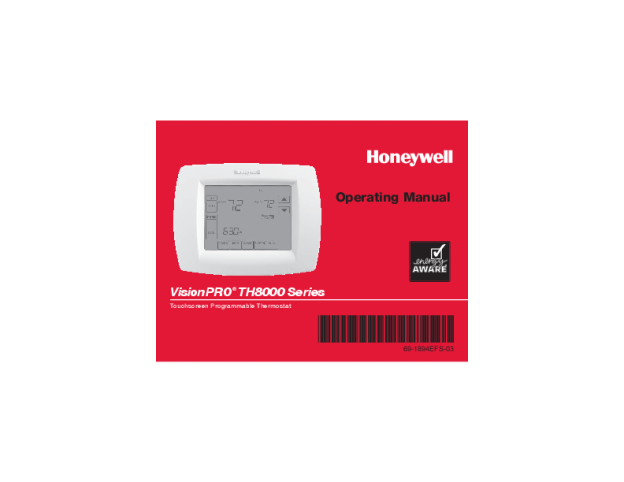
This Honeywell TH8110U1003 VisionPro Thermostat Operating Manual guide is for the touchscreen that arrived pre-programmed and only needs a clock set. Everything below is quoted from the 32-page PDF, with the page number attached so you can check it.
Table of Contents
What Is the TH8110U1003?
Plain answer: a touchscreen thermostat for a single-stage system, sold as part of the VisionPro TH8000 Series. The manual calls it “the world’s most advanced, easy-to-use thermostat” (page 2).
One booklet covers three models, and the differences matter. Page 1 prints the list, “This manual covers the following models”:
- “TH8110U: For 1 Heat/1 Cool systems”
- “TH8320U: For up to 3 Heat/2 Cool systems”
- “TH8321U: For up to 3 Heat/2 Cool systems with dehumidification”
The model number decides what the extra menu options do; to find it, “Pull thermostat from wallplate and turn over to find model number” (page 1).
Page 1 also warns: “Never use sharp instruments, such as a pencil or pen, to press touchscreen keys.”
Controls at a Glance
Page 4 prints the screen with every key labelled, and the captions under it say what each key does:
| Key | What the manual says it does |
|---|---|
| SCHED | “Press to set program schedule (see page 11)” |
| HOLD | “Press to override program schedule (see pages 12-14)” |
| CLOCK | “Press to set clock (see page 6)” |
| SCREEN | “Press to lock keypad for 30 seconds to clean screen (see page 17)” |
| MORE | “Press for more options (select models only)” |
| FAN | “Press to select fan operation (see page 7)” |
| SYSTEM | “Press to select system type (see page 8)” |
Page 5 lists the status line: “Cool On: Cooling system is activated”, “Heat On: Heating system is activated” and “Recovery” — for when “Adaptive Intelligent Recovery in effect (see page 15)”, the feature that lets the thermostat “learn” how long the furnace and air conditioner take “to reach programmed temperature settings”. Heat running early for a wake-up isn’t a bug.
Clock, Fan and System Settings
Set the clock first. Page 6: “To set the current time display, press CLOCK, then press” the up or down arrow, and DONE saves. The note that separates it from a cheap dial: “The real-time clock should never require adjustment since it automatically updates for daylight savings time, and stores all date/time information”. The weekday is set in the advanced functions.
Fan has three modes, and page 7 defines them exactly:
- “On: Fan is always on.”
- “Auto: Fan runs only when the heating or cooling system is on.”
- “Circ: Fan runs randomly, about 35% of the time, not counting any run time with the heating or cooling system.”
Two fine points from that page: “If a fan schedule is programmed, “Auto” will run the fan schedule”, and a forced fan stays put — “the setting you select will remain active until you press FAN again to select Auto”.
Page 8 gives SYSTEM its positions: “Heat: Thermostat controls only the heating system.” “Cool: Thermostat controls only the cooling system.” “Off: Heating and cooling systems are off.” “Auto: Thermostat automatically selects heating or cooling depending on the indoor temperature.” A fifth, Em Heat, is flagged “Select models only”, and its result is blunt: “Compressor is locked out.”
Programming the Schedule
The Honeywell VisionPro thermostat programming instructions begin on page 9, under “Save money by setting program schedules”, which defines the four periods by what you’re doing in them:
- Wake — “Set to the time you awaken and the temperature you want during the morning, until you leave for the day.”
- Leave — “Set to the time you leave home and the temperature you want while you are away (usually an energy-saving level).”
- Return — “Set to the time you return home and the temperature you want during the evening, until bedtime.”
- Sleep — “Set to the time you go to bed and the temperature you want overnight (usually an energy-saving level).”
The factory schedule assumes a conventional day. Page 3 states the presets in one line: “energy-saving levels while you’re at work or asleep (assumes you wake at 6 am, leave at 8 am, return at 6 pm and go to bed at 10 pm)”.
Adjusting a period
Page 11’s steps, in the manual’s own words:
- “Press SCHED, then EDIT.”
- “Press day buttons (MON-SUN) to select day(s).”
- Set that period’s time and its heat and cool temperatures with the up or down arrow.
- “Press other time periods (LEAVE, RETURN, SLEEP) to set time and temperatures for each.”
- Press DONE to save, or CANCEL to leave without saving changes.
Two helpers: “You can press CANCEL PERIOD to eliminate any unwanted time period”, and “Press FAN to customize fan settings for any time period (see page 7)”. The day buttons copy one day onto others — the screen prints “OK TO PICK MULTIPLE DAYS” above them. Want two periods instead of four? Advanced function 0540 switches between “Two program periods (Wake, Sleep)” and “Four program periods (Wake, Leave, Return, Sleep)” (page 25).
Temporary, Permanent and Vacation Holds
Temporary. Press the up or down arrow: “This will temporarily override the temperature setting for the current time period.” When the timer expires or you press CANCEL or SCHED, “the program schedule will resume and set the temperature to the level you’ve programmed”.
Permanent. “Press HOLD to permanently adjust the temperature. This will turn off the program schedule.” Page 13: what you set “will be maintained 24 hours a day until you manually change it or press CANCEL (or SCHED) to cancel “Hold” and resume the program schedule.”
Vacation. Page 14 suspends the schedule for a counted run of days: set a temperature and the resume time, then “Press HOLD twice” and pick the count. “Whatever temperature you set will be maintained 24 hours a day for the number of days you select. After this number of days have elapsed, the previously programmed schedule will resume at the time you set.” Back early? CANCEL or SCHED resumes it.
Screen Lock, Cleaning and Humidity
Page 16 covers tampering: “To prevent tampering, the screen can be partially or fully locked.” In partial lock, “the screen displays SCREEN LOCKED for several seconds if a locked key is pressed”, and any unlocked key clears it while that message shows. Full lock is absolute — “When the screen is fully locked, no keys function.” Both come from advanced function 0670 (page 25).
Cleaning has its own key: “Press SCREEN to lock the screen for cleaning. The screen will remain locked for 30 seconds so you can clean the screen without changing any settings” (page 17). On liquids: “Do not spray any liquid directly on the thermostat. Spray liquids onto a cloth, then use the damp cloth to clean the screen.”
Humidity is a select-models feature. “Select models can display the current indoor humidity level” (page 18), and “When humidity increases, the thermostat runs the air conditioner longer to reduce humidity” (page 19). With an outdoor sensor fitted, “the outdoor temperature is shown instead of the humidity level. Press MORE to display the humidity level.”
Advanced Functions
Entering setup is a two-key trick, not a menu button. Page 21: “1. Press SYSTEM.” then “2. Press and hold blank center key until the display changes.” The blank centre key is the space in the middle of the screen. The Honeywell TH8000 series advanced functions a homeowner needs:
| Function | Name | Settings in the manual |
|---|---|---|
| 0160 | “Program schedule on/off” | “0 Program schedule is off. Thermostat is non-programmable.” / “4 Program schedule is on (7-day programmable).” |
| 0540 | “Program schedule periods” | “2 Two program periods (Wake, Sleep)” / “4 Four program periods (Wake, Leave, Return, Sleep)” |
| 0320 | “Temperature format (°F/°C)” | “0 Fahrenheit” / “1 Celsius” |
| 0670 | “Screen lock” | “0 Screen is unlocked (fully functional)” / “2 Screen is fully locked” |
| 0500 | “Furnace filter change reminder” | “0 Off (no reminder to change furnace filter)” through “6 Reminder after 365-day run time (about 3 years)” |
| 0510 | “Humidifier pad change reminder” | “1 Reminder after 3 months” / “2 Reminder after 6 months” / “3 Reminder after 1 year” |
| 0520 | “UV lamp change reminder” | “1 Reminder after 1 year” |
| 0120-0150 | Year, month and date settings | Four separate functions: the two year digits, month (1-12) and date (1-31) |
| 0330 | “Daylight savings time on/off” | “The thermostat is pre-programmed to automatically adjust to daylight savings time.” |
Every reminder alert clears the same way: “Press RESET to cancel the alert”.
Batteries and Reset
Page 20 opens with the fact that surprises most owners: “Batteries are optional (to provide backup power) if your thermostat was wired to run on AC power when installed.” When the warning starts, “Install fresh batteries immediately when the LO BATT warning begins flashing.” Even without one, the standing advice is to “replace batteries once a year, or before leaving home for more than a month”, and TH8110U1003 battery replacement takes “3 fresh AAA alkaline batteries”.
There is no factory reset button in this document, so how to reset Honeywell VisionPro thermostat settings comes down to the levers the manual does give. To clear the schedule rather than the power, use function 0160: “0 Program schedule is off. Thermostat is non-programmable.” / “4 Program schedule is on (7-day programmable).” Because the clock “stores all date/time information”, a battery swap shouldn’t cost you the schedule.
In Case of Difficulty
For TH8110U1003 troubleshooting, page 26 opens with “If you have difficulty with your thermostat, please try the following suggestions. Most problems can be corrected quickly and easily.” and names five symptoms. Here is the manual’s own list, with only what this PDF copy prints as readable text:
| Symptom | What this copy of the manual reads |
|---|---|
| “Display is blank” | Fixes are in the scrambled block; the readable tail says “batteries are correctly installed (see page 20).” |
| “No response to key presses (or temperature will not change)” | Listed on page 26; read the bullets under it in your own copy. |
| “Backlight is dim” | Listed on page 26, followed by the same readable “batteries are correctly installed (see page 20).” |
| “Heating or cooling system does not respond” | Press SYSTEM once each way: “Make sure the temperature is set higher than the Inside temperature.” / “Make sure the temperature is set lower than the Inside temperature.” |
| “Heating or cooling system does not respond” | If “Wait” is displayed, the readable tail gives “5 minutes for the system to restart safely, without damaging the compressor (see page 15).” |
| “Display shows Fan Auto and On or Auto and Circ at the same time” | “If Auto and On is shown, the fan is scheduled for “On” during this period (see page 7).” |
That gap is the honest limitation of this run: several pages of this PDF — the feature list on page 2, the preset temperatures on page 10 and most of the troubleshooting on page 26 — use a subset font with no usable text mapping, so they extract as scrambled glyphs. The symptom names above survived because they print in a normal font; the sentences under them did not. For those rows the paper manual is the authority.
Specifications
- Document: Operating Manual, VisionPRO TH8000 Series Touchscreen Programmable Thermostat, number 69-1894EFS-03, 32 pages, © 2011 Honeywell International Inc.
- Schedule: four periods a day, weekday and weekend settings, “7-day programmable” through function 0160.
- Warranty: page 29 heads a “5-year limited warranty”, and the readable exclusion says “This warranty does not cover removal or reinstallation costs.”
- Support: “call Honeywell Customer Care toll-free at 1-800-468-1502”.
FAQ
Can the TH8110U1003 run two stages of heating?
Not per this document, which assigns it one stage each way: “TH8110U: For 1 Heat/1 Cool systems”. The models in the same booklet that handle more are TH8320U and TH8321U, “For up to 3 Heat/2 Cool systems”.
Why does the screen say Wait after I turn the cooling on?
Compressor protection, which page 15 defines as a delay rather than a fault: “This feature forces the compressor to wait a few minutes before restarting, to prevent equipment damage.” Page 27 gives the number: “5 minutes for the system to restart safely, without damaging the compressor”.
Is there a TH8110U1003 wiring diagram in this manual?
No. This operating manual runs from clock setting to humidity control with no terminal chart; the only wiring language here is that the thermostat may have been “wired to run on AC power when installed”.
Does the TH8110U1003 work with an app?
The document never says so. Across all 32 pages there is no mention of Wi-Fi, a network, an app or a portal — your TH8110U1003 VisionPro manual PDF describes keypad-only operation.
What if the display goes blank?
Page 26 lists “Display is blank” first, and its readable fragment points at power: “batteries are correctly installed (see page 20).” The rest of that block is in the pages this copy can’t render as text, so confirm against the paper manual.